How to change the new tab page in Chrome (and switch back)
Every time you open a new tab, Chrome shows the same page: a search box and a row of shortcuts. You can change how that page looks from Chrome itself. To put something else on it, the usual route is an extension.
This guide covers both ways to change the new tab page in Chrome. It uses OpenTabs as the example extension: a free new tab page that lists the tabs you already have open, grouped by site, with a few cards beside them. It also shows how to get Chrome's own page back, and what the extension sends over the network.
How to change the new tab page in Chrome: the short answer
To restyle Chrome's own new tab page, open a new tab and click Customize Chrome at the bottom right. To replace the page with a different one, install a new tab extension from the Chrome Web Store and open a new tab. To go back, switch the extension off at chrome://extensions.
What Chrome's own settings can change
According to Google's help page, the Customize Chrome panel changes three things on the page:
- Shortcuts. Show the sites you picked (My shortcuts) or the ones you visit most (Most visited sites), or turn Show shortcuts off. Each shortcut has its own menu to edit or remove it.
- Appearance. Choose a theme from the gallery or upload one of your own pictures as the background, pick a colour, and switch between light, dark and your device's setting.
- Cards. Show or hide the cards Chrome adds to the page.
Google also notes that what you can change depends partly on your default search engine and on being signed in.
The other settings people try are the homepage and the startup page. Google's help says: "You can customize Google Chrome to open any page for the homepage or startup page." Those are the page behind the Home button and the pages Chrome opens when it starts. One of the startup choices, under Settings → On startup, is simply Open the New Tab page.
So: to change the look, use Customize Chrome. To change what is actually on the page, the usual way is an extension that replaces it.
Replace the new tab page with an extension
A new tab extension swaps Chrome's page for its own. Here is how that works with OpenTabs. It is free and needs no account. Its interface is in English only for now.
- Open its Chrome Web Store page, where it is listed as Tab Manager - Duplicates & Merge | OpenTabs, and press Add to Chrome. It needs Chrome 121 or later.
- Open a new tab. There is nothing to set up first.
Instead of Chrome's page you now get a greeting and the date, the number of tabs you have open, a prompt box, and four cards:
- Tabs Management lists every tab you have open, from all your windows, grouped by site. Two MDN pages, for example, sit together under mozilla.org. Click a title to jump to that tab.
- Web Apps is empty until you add the sites you use.
- Focus holds the one thing you want to get done today.
- Weather shows Singapore until you choose your own city.
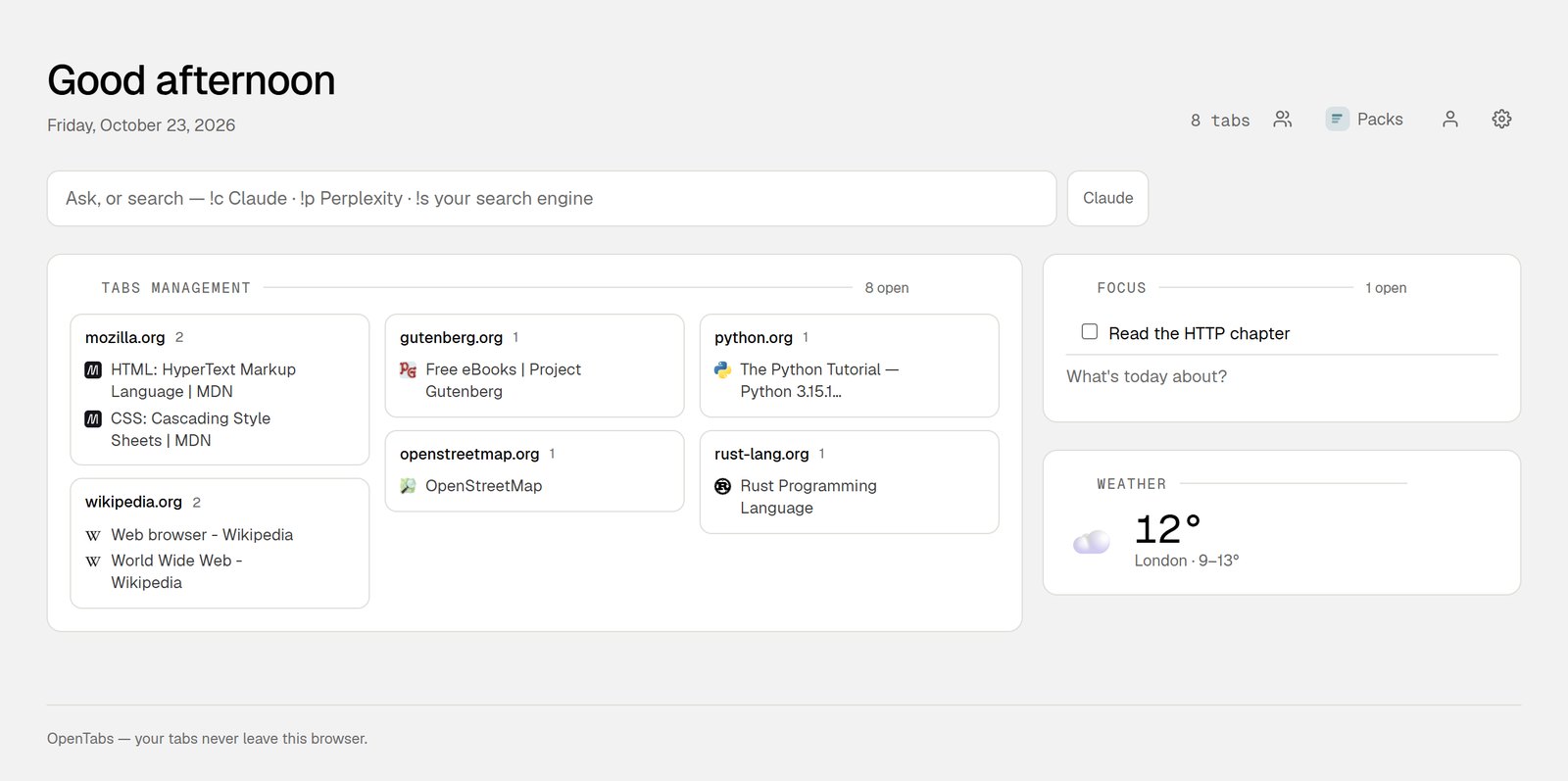
Choose what is on the page
Click the gear icon at the top right to open Settings. The Groups tab lists the cards you can use. Tick a card's box to show it and untick it to hide it, use ↑ and ↓ to change the order, and click edit for that card's options. Changes save straight away, and the next new tab shows them.
Four cards are on to begin with. The others include Crypto, Stocks, Status, GitHub trending, Recent bookmarks, X search, Scratchpad, To-dos, Events and Calendar, plus news topics such as AI, Finance and Robotics. In our test, switching Web Apps off and Scratchpad on gave a new tab with Tabs Management, Focus, Weather and Scratchpad.
To set your city, click edit next to Weather, type the city under Find a city and press Search. Pick the right one from the list: "London" brought up London, England first, followed by London in Ontario, Ohio and elsewhere.
The prompt box is not a plain search box
Worth knowing before you type in it: by default, pressing Enter in the box at the top sends what you typed to Claude, an AI assistant: Chrome opens claude.ai with your question. The button next to the box shows which assistant is in use. Clicking it switches to ChatGPT, Perplexity or Search, but only for that tab: the next new tab starts with Claude again.
To search with Chrome's default search engine instead, start your query with !s. To make that the default, go to Settings → General and set Assistant for the prompt bar to Your default search engine. In our test, Enter then opened a Google search, Google being the browser's default.
If you also want to tidy up the tabs themselves, How many tabs do I have open? shows how to close duplicates and clear a whole site at once.
How to switch back to Chrome's new tab page
- Type
chrome://extensionsin the address bar and press Enter. - Find Tab Manager - Duplicates & Merge | OpenTabs and switch it off.
- Open a new tab. It is Chrome's own page again.
Switching the extension back on brings OpenTabs back with your settings as you left them. In our test, the cards, the city and the search setting were all still there.
There is a second route. In our test, Settings → On startup showed a note under Open the New Tab page: "Tab Manager - Duplicates & Merge | OpenTabs is controlling this setting", with a Disable button next to it. Clicking Disable switched the extension off in the same way.
What OpenTabs sends over the network
Grouping your tabs happens inside the extension. To see what goes out, we installed OpenTabs in a fresh browser and recorded every request the browser made.
- Straight after installing, before we opened a single new tab, it fetched the weather for its default location (Singapore) from Open-Meteo and downloaded its list of web apps from opentabs.app.
- Choosing a city sends the name you type to Open-Meteo's city search.
- Opening a new tab loads the small icon of each site you have open, from that site. Your browser has usually stored these already.
- The prompt box sends your question to the assistant or search engine you chose, but only when you press Enter.
Every request the extension made was a plain download. None of them carried your list of tabs.
If you would rather it stayed quiet, untick Weather and Web Apps in Settings → Groups. We checked this: with both cards on, OpenTabs fetched them again when it next refreshed in the background. With both off, it sent nothing to Open-Meteo or opentabs.app.
FAQ
Can I change the new tab page in Chrome without an extension?
You can change how it looks: theme, background picture, colour, shortcuts and cards, all from Customize Chrome at the bottom right of a new tab. To replace the page itself, use an extension.
Can I make new tabs open a website of my choice?
Chrome's own settings let you pick a specific page for startup and for the Home button. OpenTabs does not do this: it replaces the new tab with its own page of your open tabs and cards, not with a website.
How do I get the default Chrome new tab page back?
Switch the extension off at chrome://extensions. Switch it back on whenever you like, and your settings return with it.
Is OpenTabs free?
Yes. There is no paid plan and no account to create. Signing in is optional and only used to publish or like a shared pack.
Is OpenTabs available in other languages?
No. The interface is in English only.
Does it work in Edge or Firefox?
OpenTabs is also on Edge Add-ons and Firefox Add-ons. This guide covers Chrome only.